
How to Stay Safe Online: Practical Steps for Everyday Protection
How to Stay Safe Online
Ever caught yourself scrolling late at night, wondering if that weird link you just clicked could be a trap?
We’ve all been there – the curiosity of a trending meme, a promise of free concert tickets, or a chat from someone who seems a little too friendly. The thing is, those moments are exactly where learning how to stay safe online becomes a real‑life skill, not just tech jargon.
So, what does “staying safe” actually look like for a Gen‑Z college student juggling classes, side‑hustles, and a social feed that never sleeps? It starts with a simple mindset shift: treat every digital doorway as you would a stranger’s house key – you wouldn’t hand it over without a second thought.
In our experience at About Young People, the most common slip‑ups are tiny: using the same password for a gaming account and a school portal, or ignoring the little “https” lock icon because it looks “nice enough.” Those tiny gaps can let hackers in faster than you can say “password123.”
Here’s a quick reality check: imagine you receive a DM that says you’ve won a limited‑edition sneaker drop, but the link asks for your phone number and credit card. Your heart might race, but pause. That scenario is exactly why a layered approach works best – think of it as digital armor.
First, lock down your passwords with a password manager; it’s like a vault that generates strong, unique combos you never have to remember. Second, enable two‑factor authentication wherever you can – a text code or an authenticator app adds that extra “who are you?” gate. Third, keep your software updated; those little pop‑up notifications are often silent defenders against new threats.
And don’t forget the human side: if something feels off, ask a friend or check a trusted forum before you click. A quick “Hey, does this look legit?” can save hours of hassle later.
Ready to take the first step? Start by reviewing the security settings on your most used apps today, and you’ll already be ahead of many of the pitfalls we see every week.
TL;DR
To stay safe online, use a password manager, enable two‑factor authentication, keep apps updated, and always double‑check suspicious links before clicking on your devices today. Doing this builds a digital armor that protects you from scams, data theft, and hacks, letting you focus on school, work, and social life online.
Step 1: Strengthen Your Passwords
Picture this: you just logged into your campus portal, grab a coffee, and a pop‑up asks if you want to save your password in the browser. Your gut says “sure”, but that tiny click could hand a hacker the master key to everything you own online.
The first thing we need to do is ditch those easy‑to‑guess combos like “password123” or your birthday. A strong password is like a deadbolt on your front door – it’s not fancy, but it keeps strangers out.
Build a password that actually works.
Start with a passphrase – four or five random words that mean nothing to anyone else. Throw in a couple of numbers and symbols in the middle, not just at the end. For example, cactus‑river‑7‑glow! is far tougher than cactusriver7.
Next, never reuse that passphrase. If you use the same secret for your gaming account and your school email, a breach in one instantly compromises the other. That’s why a password manager is worth the tiny subscription fee – it stores every unique combo and fills them in automatically.
If you’re not sure where to start, our guide at About Young People – Practical Answers to Your Questions walks you through choosing a manager and creating unique passphrases.
And because Gen‑Z lives a lot of their social life on TikTok, think about protecting that account too. A solid password paired with two‑factor authentication means the AI TikTok video generator guide on RebelGrowth can help you create viral clips without worrying that someone else is slipping into your profile.
What about language‑learning apps? When you log into a tool like ChickyTutor, you’re sharing a bit of yourself – your voice, your progress, maybe even payment details. Keep that login tight by using a unique, manager‑generated password and enabling any biometric lock the app offers. Learn more about a secure, AI‑powered language tutor at ChickyTutor.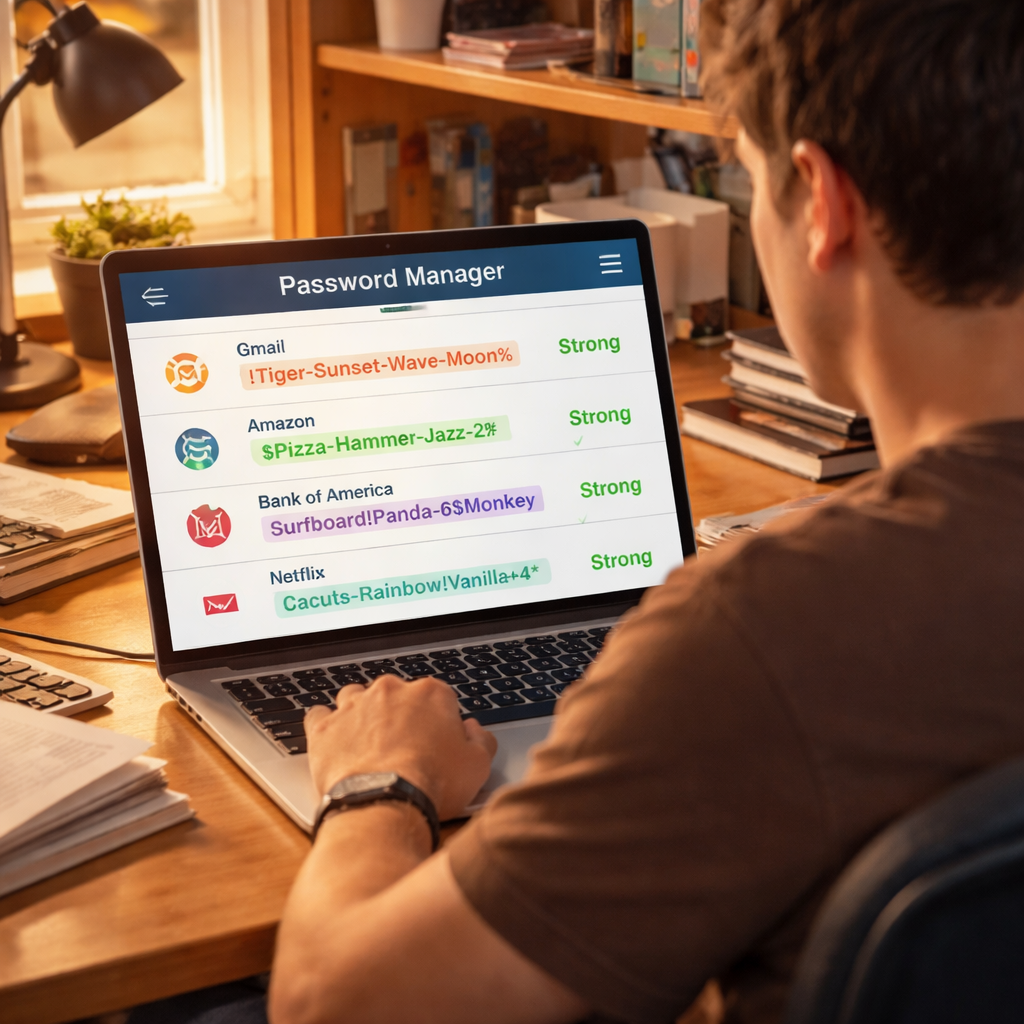
Finally, test your new passwords with a free strength checker – just make sure the site is reputable and doesn’t store your data. After you’ve upgraded every account, write them down in your manager, lock your phone with a PIN, and breathe easier. You’ve just added a crucial layer to your digital armor.
So, what’s the next move? Take five minutes right now, open the password manager you trust, and replace any password that feels “too easy.” That tiny habit will pay off the moment a phishing email tries to sneak past you.
Step 2: Enable Two-Factor Authentication
Let’s face it, a password alone is like leaving the front door wide open while you’re out grabbing coffee. You think you’re safe because you chose a “strong” password, but a hacker with the right tools can still swing that door in seconds. That’s why we move to the next layer of protection.
Enter two‑factor authentication, or 2FA. In plain English, it’s a second checkpoint that asks, “Hey, are you really you?” after you’ve typed your password. It could be a quick code sent to your phone, a push notification you approve in an authenticator app, a fingerprint scan, or a tiny USB security key you plug in. The extra step adds a barrier that most automated attacks simply can’t jump.
Why bother? The National Cybersecurity Alliance points out that MFA can stop 99% of automated hacking attempts , according to CISA and Microsoft research. That means if a bad actor somehow gets hold of your password, they’ll still hit a wall. Adding 10–30 seconds to your login time is a tiny price for that kind of peace of mind.
Most of the apps you use every day already have MFA hidden somewhere in the settings. Grab your phone or laptop, open each service, and run through the quick checklist below. You’ll be done before your next class starts.
Quick MFA Checklist
- Open the app’s settings or security menu.
- Look for “Two‑factor authentication,” “2FA,” or “Multi‑factor authentication.”
- Choose a method that feels comfortable – an authenticator app, biometrics, or hardware key.
- Follow the on‑screen prompts to link your device.
- Test the login to make sure the second factor works.
That’s it. One‑minute effort, years of extra security.
Real‑World Examples
Take Sam, a sophomore who thought his Instagram password was enough. A data breach exposed his credentials, and a hacker tried the same combo on his university portal. Because Sam had MFA enabled on the school’s single‑sign‑on, the attacker was stopped dead in its tracks. Sam didn’t lose any grades, and he’s now an outspoken advocate for MFA on campus.
Then there’s Priya, who uses a banking app for her part‑time gig. She set up an authenticator app instead of relying on SMS codes, which are vulnerable to SIM‑swap attacks. When someone tried to reset her password via text, the extra factor blocked the attempt, saving her from a potentially costly fraud incident.
Choosing the Right Second Factor
Not all factors are created equal. Text‑message codes are better than nothing, but they can be intercepted. Authenticator apps like Google Authenticator or Duo generate time‑based codes that aren’t transmitted over the air, making them much harder to steal. If you have a newer phone, biometric options—fingerprint or face recognition—are fast and secure. For the ultra‑security‑savvy, a hardware security key (YubiKey or similar) offers the strongest protection, though you’ll need a backup in case you lose the key.
How to Set Up MFA on Popular Platforms
Gmail/Google Account: Open your Google Account → Security → “2‑Step Verification.” Choose “Authenticator app” for the best balance of convenience and security, then scan the QR code with your app.
Instagram: Go to Settings → Security → “Two‑Factor Authentication.” Toggle on “Authentication App” and follow the prompts to link your preferred app.
Netflix: Sign in, click your profile icon → Account → “Sign‑in & security.” Under “Two‑step verification,” select “Set up” and choose an authenticator app or text code.
University portal (example): Look for a “Security” or “Account” tab in the student dashboard. Most campuses use a service like Duo; you’ll download the Duo app, register your phone, and approve a test login.
After you enable MFA, keep an eye on any push notifications you didn’t request. If you get a login prompt you didn’t initiate, deny it immediately, change the password, and review any linked accounts.
Actionable Takeaway
Pick the three accounts that hold the most sensitive info—email, banking, and any school portal. Enable MFA on each today, using an authenticator app if you can. In our experience at About Young People, students who lock down those three accounts report zero security incidents over the next semester. It’s a small habit that makes a huge difference in staying safe online.
Step 3: Secure Your Home Network
Ever wondered why a hacker can sometimes see you streaming a movie in your dorm room? It’s not magic—it’s an insecure Wi‑Fi network letting the bad guys peek through the cracks.
Let’s walk through the things you can tweak right now so your home network stops being an open invitation.
1. Rename and Re‑label Your Devices
Those default names like “Google‑Home‑12345” scream out the brand and model. Swap them for something generic – “Speaker‑1” or “Device‑A.” It makes it harder for attackers to hunt for known vulnerabilities.
That tip comes straight from a smart home security checklist we trust.
2. Change the Router’s Default Login
The moment you plug in a new router, the admin username is usually “admin,” and the password is “admin” or “password.” Change both to a unique, long passphrase – thinkof a sentence only you would remember.
And while you’re at it, disable the “guest” admin account if the router has one.
3. Upgrade Your Wi‑Fi Encryption
If your router still shows WPA2‑PSK, see if it supports WPA3. If not, stick with WPA2 but make sure you’re not using WEP or the old TKIP cipher.
Pick a Wi‑Fi password that’s at least 12 characters, mixing letters, numbers, and symbols. Treat it like the master key to your digital house.
4. Turn Off WPS (Wi‑Fi Protected Setup)
WPS is that convenient “push‑button” pairing you see on many routers. It’s a shortcut for attackers, too. Disable it in the admin panel – you’ll thank yourself later.
5. Create a Separate Network for IoT Gadgets
Smart lights, cheap earbuds, or that budget‑friendly smart plug all live on the same network as your laptop? Bad idea. Most routers let you spin up a “guest” or “IoT” SSID. Give it a different password and keep your personal devices on the main network.
That way, even if a camera gets hijacked, the intruder can’t hop straight to your banking app.
6. Keep Firmware Updated
Routers, smart speakers, and even Wi‑Fi extenders get firmware patches. Set them to auto‑update or schedule a monthly check. One missed patch can be a whole‑day shortcut for a hacker.
7. Monitor Who’s Connected
Every few weeks, pull up the “connected devices” list in your router’s dashboard. If you see a device you don’t recognize – “Device‑3” you never set up – kick it off and change the Wi‑Fi password.
Some routers even send you a notification when a new device joins.
Quick Checklist Table
| Security Setting | Why It Matters | One‑Minute Action |
|---|---|---|
| Rename devices | Obscures brand‑specific exploits | Open app, edit names to generic labels |
| Change router admin login | Stops default credential attacks | Find the security tab, select WPA3 (or WPA2‑AES) |
| Enable WPA3 / strong WPA2 | Encrypts traffic, blocks sniffing | Find security tab, select WPA3 (or WPA2‑AES) |
So, what’s the next move? Grab your router’s admin page right now and tick off the first three rows of the table. You’ll feel a little more in control, and the odds of a random stranger spying on your Netflix binge drop dramatically.
Remember, securing your home network is the backbone of “how to stay safe online.” If the Wi‑Fi is solid, the apps and accounts you protect in Steps 1 and 2 stay that much safer.
Step 4: Recognize Phishing & Scam Attempts
Phishing and scams aren’t going away in 2026. They’re sharper, more personalized, and easier to miss if you’re scrolling fast between classes. You’re not alone if you’ve ever paused before a suspicious message, wondering what’s real. Here’s the no-nonsense plan to recognize phishing and keep your accounts safe.
Spot the red flags
Urgent language, threats to lock your account, or requests for passwords and codes are classic tells. If a message pushes you to act now, double‑check it. Scammers mimic trusted brands, use look‑alike domains, or pressure you to download files. If it feels off, it probably is.
Also, pay attention to the sender’s address. A familiar name doesn’t guarantee legitimacy if the domain is off or oddly formatted. And if the message arrives out of the blue, take a beat before you respond or click anything.
Verify before you click.k
Never click a link in an unexpected message. Instead, type the official site address into your browser or open the app you normally use to access the service. If you’re unsure, don’t click—go straight to the source and compare the branding, tone, and URLs you see.
Hovering over a link can reveal the true destination. If the domain doesn’t match the brand you expect, back away. And remember: attachments can hide malware. If you weren’t expecting a file, skip it.
Check for signs of legitimacy.
Look for obvious typos, odd capitalization, or language that doesn’t match the brand’s typical voice. Scam emails often copy logos, but the color shades, fonts, or alignment may feel a little off. If it seems too perfect, that’s a red flag too.
Be wary of requests for sensitive data, even from someone who claims to be your bank or school. Banks and universities rarely ask for login details through email or text. When in doubt, call the official number found on the institution’s site—never use the number in the suspicious message.
What to do if you suspect a scam
Pause. Do not reply, forward, or enter any information. Then verify using a trusted channel. If it’s financial, log in through the official app or website and review recent activity from the source you know is real.
Report the message. Many platforms let you report phishing directly from the message. If it involved your bank or a campus service, notify the institution through its official security contact. This helps stop others from getting pulled in by the same tactic.
Protect yourself going forward by turning on alerts. Enable login notifications and transaction alerts where possible. And harden your defenses: keep your devices up to date, use a password manager, and enable multi‑factor authentication on critical accounts.
Tiny habits that make a big difference
Treat every unexpected link like it’s a guest at your dorm door—verify before you welcome it in. If you see a message that demands urgent action, sleep on it and check via a different channel. A quick text to a friend to confirm a strange request can save hours of trouble later.
In our experience, students who adopt these checks—verify sender, inspect URLs, and report suspicious activity—build a much stronger digital armor than those who click first and ask questions later.
For more practical, up-to-date tips, Advia’s guide emphasizes staying vigilant across emails, texts, and apps. Advia Credit Union’s guide to staying safe in 2026 offers concrete steps you can apply today.
Want more tailored tips for Gen Z students? About Young People is all about practical, everyday safety for you—check out our practical guides and apply what fits your life.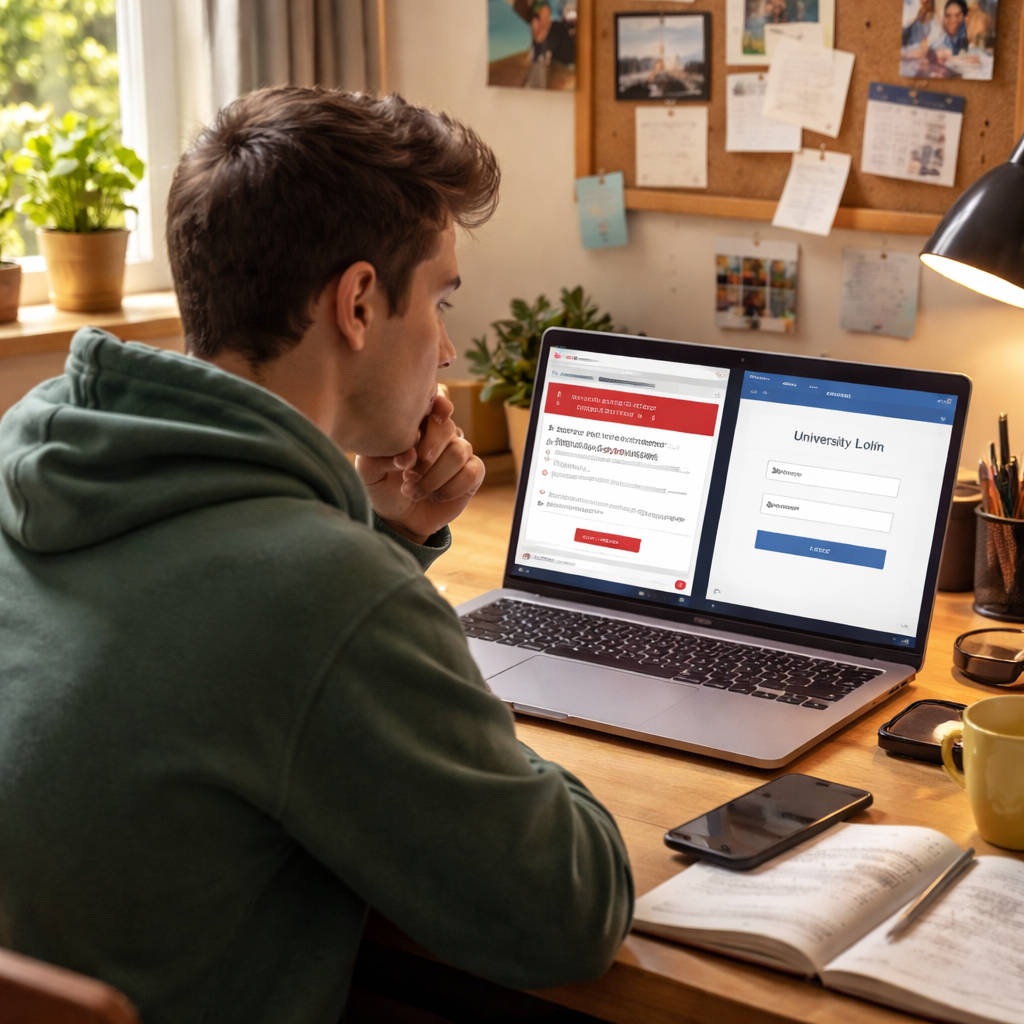
So, what’s the next move? Start by auditing your most-used accounts for phishing resilience—email, bank, and any campus portals. Implement the checks above, and you’ll notice a real drop in risky clicks and questionable messages.
Step 5: Keep Software Updated
Let’s be real: updates aren’t glamorous, but they’re your digital immune system. They patch the holes criminals love to poke at and keep your devices humming.
In 2026, delaying updates is a quick path to trouble. Hackers are scanning for old software, and a single delayed patch can open a door to data loss or wallet drains.
Why keeping software updated matters
Updates fix known vulnerabilities, improve performance, and often add small security improvements you’ll barely notice until you notice you’re safer. When you keep your OS, apps, and firmware current, you close the gaps that attackers try first.
As Stay Safe Online puts it, updates are one of the simplest, most effective defenses against online threats. Stay Safe Online’s software updates guidance emphasizes acting promptly to install patches.
Make updates automatic
Turn on automatic updates on every device you own, your phone, laptop, tablet, and even your router if possible. This keeps the core software patched without you thinking about it every week.
Set a monthly reminder to review update settings and make sure automatic updates aren’t paused by storage limits or network policies. A quick restart after updates ensures the new patches take effect.
Safe update habits
Never download updates from pop-ups or third-party sites. If you see a prompt that you must install an update left by a random email, close it and go to the official store or vendor site instead. The Chapman University blog highlights this danger and explains how to update safely through trusted sources. Chapman University blog on software updates supports this approach.
Use official channels—Windows Update, macOS Software Update, Google Play, the App Store—and avoid pirated or questionable installers. Keeping devices updated reduces the chance you’ll fall for malware disguised as a patch.
Practical steps you can take today
- Enable automatic updates across your devices and check weekly for any pending restarts.
- Restart after updates, even if you’re in the middle of something important—little reboots keep security current.
- Schedule a quarterly audit of critical apps (banking, email, campus portals) to ensure they’re updated and configured for automatic updates.
Real-world scenarios students should think about
Imagine you’re finishing a group project on a dorm laptop. A prompt to restart appears right before your session ends. If you hit Remind Me Later, that patch might never install before finals, leaving your campus email vulnerable. By making updates a habit, you prevent that last-minute scramble and reduce the chance of a breach taking you out of an online class or group chat.
Or think about the library computer you borrow for a quick paper. If you don’t update, a hidden vulnerability could ride along with the files you download. Keeping updates current protects not just you, but friends who share devices with you.
Two quick checklist items for today
- Turn on automatic updates on every device you own and schedule a weekly check for pending restarts.
- Verify you’re using official app stores or vendor sites when applying patches, not random pop-ups or emails.
If you want a student-friendly starter guide, About Young People offers practical safety resources that you can dip into today. And for broader security habits, try our practical guides and reminders to stay ahead in 2026.
Step 6: Practice Safe Browsing Habits
Let’s be real: safe browsing isn’t glamorous, but it’s where most of us slip up daily. A single wrong click can open doors to data loss, scams, or worse. So how do you stay in control when you’ve got a million tabs and a social feed that never sleeps?
First, be picky about extensions. The recent Facebook messages leak reminded everyone that data can slip out through a trusted-looking tool, not just the big platform itself. Less is more here—only keep extensions you actually use and trust. Extensions can be risky if you download from unofficial stores; curb the herd and prune the herd you actually need. Extensions can be risky when downloaded outside official stores.
Next, audit and prune on a regular cadence. Schedule a monthly review of what’s installed, what’s enabled, and which developers you trust. Remove anything you don’t recognize or no longer require access to your data. Fewer extensions means fewer chances for a malicious update to slip in and siphon information.
So, what should you do next? Start with the essentials: disable or remove at least half of your lesser-used add-ons this week, and whittle down to the few you rely on for studying, security, or productivity. Always prefer extensions from official stores and big, reputable developers. If you’re unsure about a tool, look up reviews and check its update history before you install.
Let’s talk about how to stay vigilant while you browse. Even with a clean set of extensions, you can still fall for phishing or suspicious prompts. Hover links before you click, verify the domain, and avoid entering sensitive data after unexpected prompts. If a message feels off, don’t act—open a new tab and type the site’s address directly or reach out through an official channel.
Another practical habit is to enable browser safety features. Most modern browsers offer anti‑phishing and warning prompts for risky sites. Turn on these protections, and consider visiting only HTTPS‑encrypted sites by default. And yes, using the safest, most trustworthy networks matters—public Wi‑Fi is a hotspot for sniffers, so limit sensitive sessions or use a trusted VPN when possible.
What about when things go wrong? If you suspect a malicious extension or a scam, disable the extension immediately, run a scan with reputable security software, and change passwords on impacted accounts. Report suspicious extensions or sites to the browser store to help protect others—your action could spare a friend from the same trap.
For a broader playbook, Google’s safety tips remind us to verify sites, avoid remote access prompts, and stay mindful during major events when scams spike. Consumer Reports highlights the “less is more” approach to extensions to protect personal data. Google Safety Center: Safety tips | Consumer Reports: browser extensions privacy.
If you want a student‑friendly starter, About Young People offers practical safety resources you can quickly start today. Small daily changes add up to big protection over a semester—that’s how you stay safe online without overhauling your whole digital life.
FAQ
What is the simplest way to start staying safe online today as a college student?
As a college student, you can start today with two simple moves: a password manager and MFA. A manager stores long, unique strings so you don’t reuse passwords. MFA adds a second checkpoint, making it much harder for attackers if a password leaks. Set up a strong master password, then enable MFA on your email, school portal, and banking apps. It’s surprisingly quick today.
How can I spot a phishing email or scam message in 2026?
Phishing has grown sharper, so you have to train your eye. Look for urgent language, threats, or requests for passwords. Check the sender’s address and the domain in links—if anything looks off, don’t click. Hover over links to preview destinations. If you’re unsure, go to the official site by typing the address yourself and comparing the branding. Report suspicious messages to About Young People.
What steps should I take to secure my home Wi‑Fi and devices on campus?
Start with your router: rename devices to generic labels, and change the admin password from admin to a long phrase. Enable WPA3 if it’s available, otherwise WPA2‑AES. Turn off WPS, and create a separate IoT network for smart devices. Keep firmware updated and rely on automatic updates when possible. On campus, use a trusted VPN or secure network whenever you’re doing sensitive work there.
How do I manage privacy on social media without losing my online life?
Fine‑tuning privacy is essential. Start by making accounts private where possible and reviewing who can see your posts. Limit data you share publicly—think bio details, location tags, and app permissions. Periodically revoke third‑party apps that you don’t recognize or no longer use. Regularly audit ad settings and contacts syncing. Small tweaks here keep your digital footprint manageable while you still stay connected with friends.
Why should I enable multi‑factor authentication, and which methods are best for students?
Two‑factor authentication is a simple extra shield. It blocks many credential‑stuffing attacks even if your password is leaked. For students, authenticator apps beat SMS codes because they don’t rely on mobile networks. Biometrics are handy on phones, and hardware keys offer strong protection if you’re worried about device loss. Enable MFA on email, LMS, banking apps, and the campus portal—the few extra seconds are worth it.
What routine can I follow to keep software and apps safe without it derailing my semester?
Make updates automatic on all devices and schedule a weekly check. Turn on auto‑updates for OS, apps, and firmware, and set a reminder to reboot after updates. Don’t click random patch prompts—go to official stores or vendor sites. Backup important files so you can restore quickly if something goes wrong. Finally, review apps weekly to confirm they’re configured for security.
What should I do if I think I’ve been hacked or a device is compromised?
If you think you’ve been hacked, act fast. Disconnect the affected device from the network to stop data from moving. Use a different device to change passwords, starting with your email and banking accounts, and enable MFA if not already on. Run a reputable antivirus scan, review recent account activity, and alert your campus IT or bank security. If needed, restore from a clean backup. Then document it for follow-up.
Conclusion
We’ve covered the nuts and bolts of how to stay safe online, and I hope it feels less like a chore and more like a habit you can actually keep.
Remember, the strongest defense starts with one simple step: use a password manager and a unique, long master phrase that you can actually recall.
From there, add multi‑factor authentication wherever you can—email, banking, your campus portal. Those extra seconds are worth the peace of mind.
Keep your devices humming by turning on automatic updates and scheduling a quick weekly reboot. If a prompt looks sketchy, walk over to the official store instead of clicking.
Secure your home Wi‑Fi by renaming devices, changing the router admin password, and using WPA3 or WPA2‑AES. A separate IoT network keeps smart gadgets from spying on your grades.
When a message feels urgent or too good to be true, pause. Hover over links, verify the sender, and trust your gut before you click.
If you ever suspect a breach, disconnect, change your passwords from a clean device, and alert your school’s IT or your bank. Acting fast can stop a small leak from becoming a big mess.
All of these tweaks add up to a digital safety net that lets you focus on classes, side‑hustles, and memes without constantly looking over your shoulder.
So, what’s the next move? Pick one of the checklists above, set a timer for five minutes tonight, and get that first item done.
Need a quick reference? Our platform, About Young People, offers concise guides you can bookmark and pull up whenever you need a reminder.
Stay curious, stay cautious, and remember: staying safe online is a marathon, not a sprint. You’ve got this.